TOSHIBA SATELLITE A35
Fixing overheating problem

Please make a donation if you find my guides useful.
It takes a few hours to create one disassembly guide and only a few minutes to make a donation. Thank you.
 Find another model
 
 
Toshiba Satellite 1805

Fixing Toshiba Satellite A35 laptop overheating problem. How to remove and clean CPU cooling fan and heatsink.


A few things to know before you start taking your laptop apart

Why my Toshiba laptop suddenly shuts down by itself without any warning?

Click on any picture to enlarge.

Laptop Parts Expert

Laptop Parts Expert

Parts for Toshiba, IBM, HP, Compaq, Dell and other brands.

Free ground shipping on all orders over $79


  If you have a suggestion or a question about Toshiba Satellite A35 disassembly, you can leave your comment here:
Comments for Toshiba Satellite A35 notebook disassembly
 
 
Remove keyboard strip

STEP 1

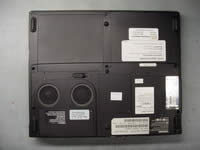
Remove the battery.
Remove two screws securing the laptop cpu cooling module.

  Need spare parts for Satellite A35 laptop? Search here.
Replace keyboard

STEP 2

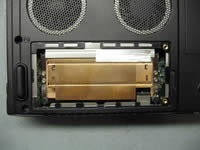
Lift off the foil, covering the cooling module.

   
Take apart laptop

STEP 3

Remove four screws securing the CPU heatsink.
Follow the numbers on the heatsink.

   
Remove laptop keyboard

STEP 4

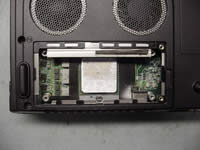
Lift the heatsink off the CPU. Wiggle the heatsink to separate if from the processor. Very often CPU comes out with the heatsink. Be careful not to damage CPU pins.

   
Remove laptop fan

STEP 5

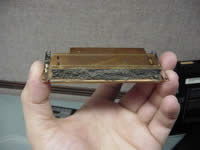
The CPU heatsink is completely clogged with lint. Using compressed air, blow out lint from the heatsink and the CPU fans.

   
Remove notebook fan

STEP 6

Clean the old grease off the processor and the heatsink.
Apply new grease on the CPU and assemble the laptop.


Repair laptop and notebook yourself
 
 Find another model


Home Page


Terms and Conditions | Privacy Policy